
Quickstart
Describe an app in one sentence, watch the agent write its files, and run it.
By the end you will have an app called Release Notes Writer sitting in your catalog, five files you can read and edit, and a run you can repeat.
An App is the thing you name, keep, and re-run. You describe what you want in one sentence; Kortecx writes a small set of files for it, saves them, and runs them on demand. You do not have to write code to get through this page.
Before you begin
- Access to the console. Talk to us to get access.
- A model available to write with. The agent that writes your app's files is itself a model; with none available, the scaffold step cannot run. See Choose a model for how models are made available.
Steps
Check a model is available
Open the console and look at the model selector. It lists the models you can run against and marks the one that is currently serving. If nothing is listed, stop here and read Choose a model first — the next step needs a model to write with.
Describe your app in one sentence
Click Apps in the sidebar, then New App. (The same button reads Close while the panel is open.)
Leave the kind on Scheduled — the automation lane, and the one this page is about.
Fill in two fields:
- App name —
Release Notes Writer - Goal —
Summarize a changelog into release notes
Everything else is optional. The Prompt box (the instruction the model runs each time) defaults to your goal. The model selector defaults to Served default. Skip both for now.
Press Create and scaffold.
Two optional fields, explained
Leave Ground on dataset (RAG) empty: a run of a scheduled app that names a dataset is refused. The chips only appear once you have ingested a dataset — see Datasets. Guidance rule is one line the agent must always follow, for example Always cite sources.
Watch it write the files
The form turns into a live view: a file tree on the left, the file currently being written on the right, streaming in as the model produces it when a model vendor you connected writes it; on the platform's own model each file appears whole once it is written. Finished files get a ✓, the one in flight gets a ◐, the rest are still pending.
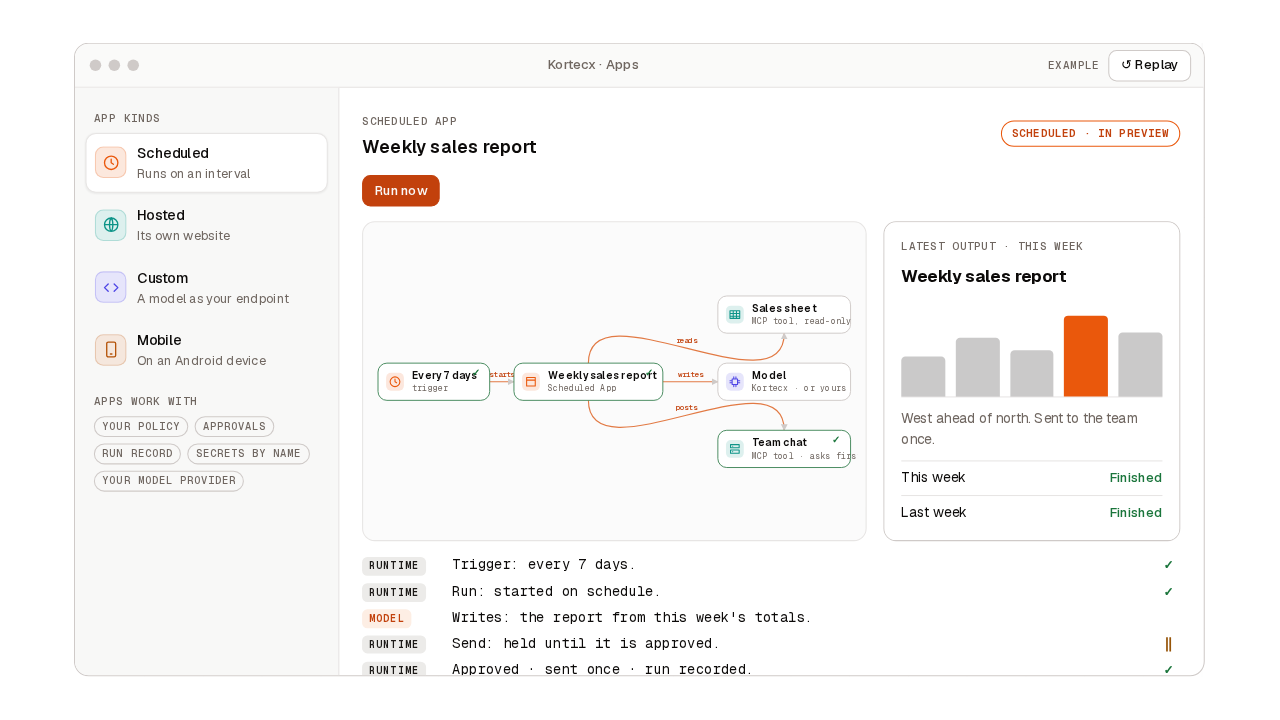
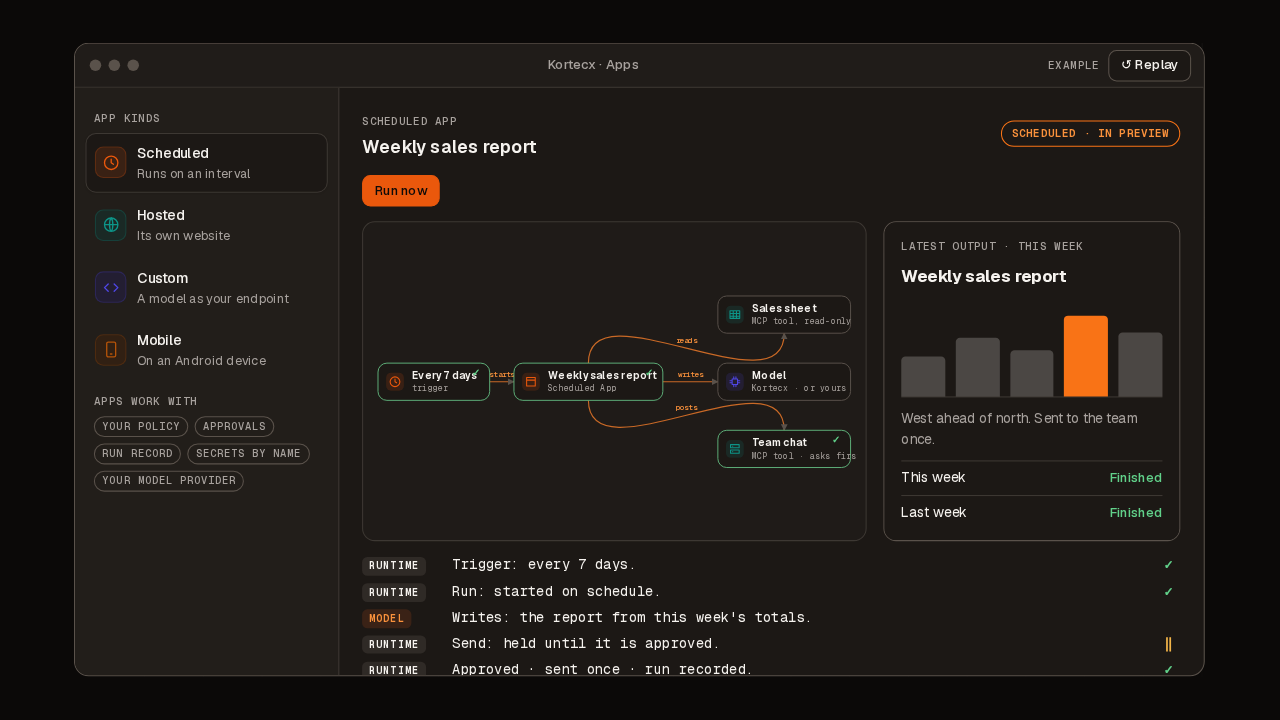
What you see is the app's actual state — which files are finished, and which phase the scaffold reports (planning → writing → done). It is not a timer.
The scheduled lane writes a fixed skeleton of five files. The structure is the same every time; the model writes the contents of each one, in this order:
prompts
rules
skills
| File | What the model is asked to write |
|---|---|
README.md | what the app does, how to run it, its inputs and outputs |
app.json | a plain JSON object: name, one-line description, model route intent, high-level steps |
prompts/system.md | the system prompt that steers the agent's behaviour |
rules/guardrails.md | the rules the agent must always follow — safety, scope, refusals |
skills/main.md | the primary skill: a focused instruction plus the tools it may use |
Earlier files become context for later ones, so the guardrails and the skill are written
knowing what the README and app.json already said.
The files live with the app, inside the runtime. Your own filesystem is never written. If the scaffold is interrupted, running it again writes only the files that are still missing — it does not start over, and it does not write anything twice. That is the same promise the rest of the runtime makes; see what you can rely on.
When the phase reaches done, an Open button appears.
Read it, then run it
Open puts you in the app's editor. The tabs are Files (the file tree, shown
read-only), Lineage (a read-only diagram of the app's steps), Skills,
MCP Tools and Integrations. Read prompts/system.md first — that is the app's
behaviour in plain English. To change it, use Modify
in the header to ask the agent for a change and accept it before it lands.
To run: press the play control on the app's card in Apps, or Run in the editor header. A drawer collects the app's inputs (an app with no input fields runs straight away), then routes you to the live run view, which updates as each step finishes. Every step is recorded, so you can go back through it afterwards.
What you should see
Your catalog under Apps lists Release Notes Writer. The editor's Files tab shows its five files, and the live run view shows its run, with every step recorded.
Worth knowing early
One app is one run. An app does not call another app. When you need several agents on one job, they chain inside one app: the app's workflow is a graph of steps, up to eight of which may call tools. See Workflows.
Next steps
Kortecx documentation
Kortecx: Engineering Intelligence. Describe an idea, a use case or a workflow in your own words, and Kortecx builds it into apps and automations you can run, share and keep improving.
Define an App
An App is the work you name, save and come back to: you build it, run it, schedule it, edit it and share it, and it never carries your passwords or permissions.